
How to, step by step
Guides for everything on Looper, by who you are. Stuck, or something isn't right? Ask for help at the bottom of this page and we answer by email.
Getting started
Looper is your own off-road drive log: every drive you lead, join or do alone, with its report, its convoy and its video. Here's how to set it up.
Create your account
- Go to Join. Type your email, the name your clubs know you by (it's how you show in convoys), a username and a password. Your log will be at looper.ae/username.
- Add your club and your level in it, and your car: make, model and colour.
- Open the link in the email we send to confirm your address. A welcome email follows with a tour.
- Invited by someone? Their link fills in your name, car and level: check them, then add your email, a username and a password.
Set up your Profile
- Clubs: every club you drive with, and your level in each. Not in the list? Type it, with its levels; Looper adds it once it's checked.
- Your cars: your main car, and any others under Your other cars (up to six).
- How you add drives: with the whole convoy, or just your own drive (your car, your level and who led).
- Pictures for your videos: your picture, your clubs' logos and an intro clip or picture.
- Emails from Looper: untick any you don't want.
Your first drive
- Open My drives, then New drive.
- Paste your club's event link, or type the title, date and time. For a drive on your own, choose the GPX file: everything else comes from the track.
- After the drive, add the GPS track and the report builds itself.
- Name the stops, add photos, then make a video on the Export tab.
Already have years of drives somewhere else? Import them as a backup: see Backup and import.
Your drive log
Your log is at looper.ae/you: Home with your totals and latest drives, Drives with every drive, Drivers & cars with everyone you've driven with, and Statistics.
Add a drive
- On Home, press New drive.
- Choose With the convoy or Just my drive, and the club (or Personal), the kind of drive and its level.
- From a Carnity event: paste the event link and press Fill from Carnity: the date, times, meeting point, host and everyone who joined fill in. Otherwise type them.
- With a track already: choose the GPX file, or paste a link (Gaia GPS, or a GPX on Google Drive or Dropbox).
- More than one car? Pick Your car. Press Create drive.
Plan the convoy
- Open the drive and press Edit on The convoy.
- Add the drivers in order, with each one's role (lead, second lead, centre forward, flying sweep, sweep), level and car on the day. People in your Drivers list fill in by themselves.
- Pick the radio channel, then Save.
- Copy convoy plan gives you a picture of the convoy and the plan as text, with the forecast, ready for the drive post.
After the drive: the track
- Open the drive and press Upload GPX, or Edit details and paste the track's link.
- The report is made from it: the route on a satellite map, the figures, the start and finish weather, the stops and the speed chart. The drive is marked done.
- An older drive without heights? On its Export tab, add the elevation makes the report again from its track.
Stops, notes and photos
- Looper finds the halts in the track. Under Events, give each one its reason: a break, a regroup, a tyre pop-out, a recovery.
- Add an event for something on the way: a note, or a stop Looper missed. Then Save events.
- Add photos: each goes at its time, where it was taken, or with an event. Open a photo to give it a caption or a place.
- Comments are for your forum post: they never go into a picture or a video.
Sections of a drive
- On the Drive tab, under the speed chart, Sections shows the drive split at its stops, with each part's time, distance, moving time, average and climb.
- Press Edit to name them (the track in, the tall dunes, the way out), Join one with the one before, or Add the split at a time you choose.
- Press Save sections. Start again from the stops goes back to Looper's splits.
Video template E shows each section's name as the car gets there; the Circuit theme shows them as sectors.
Drivers and cars
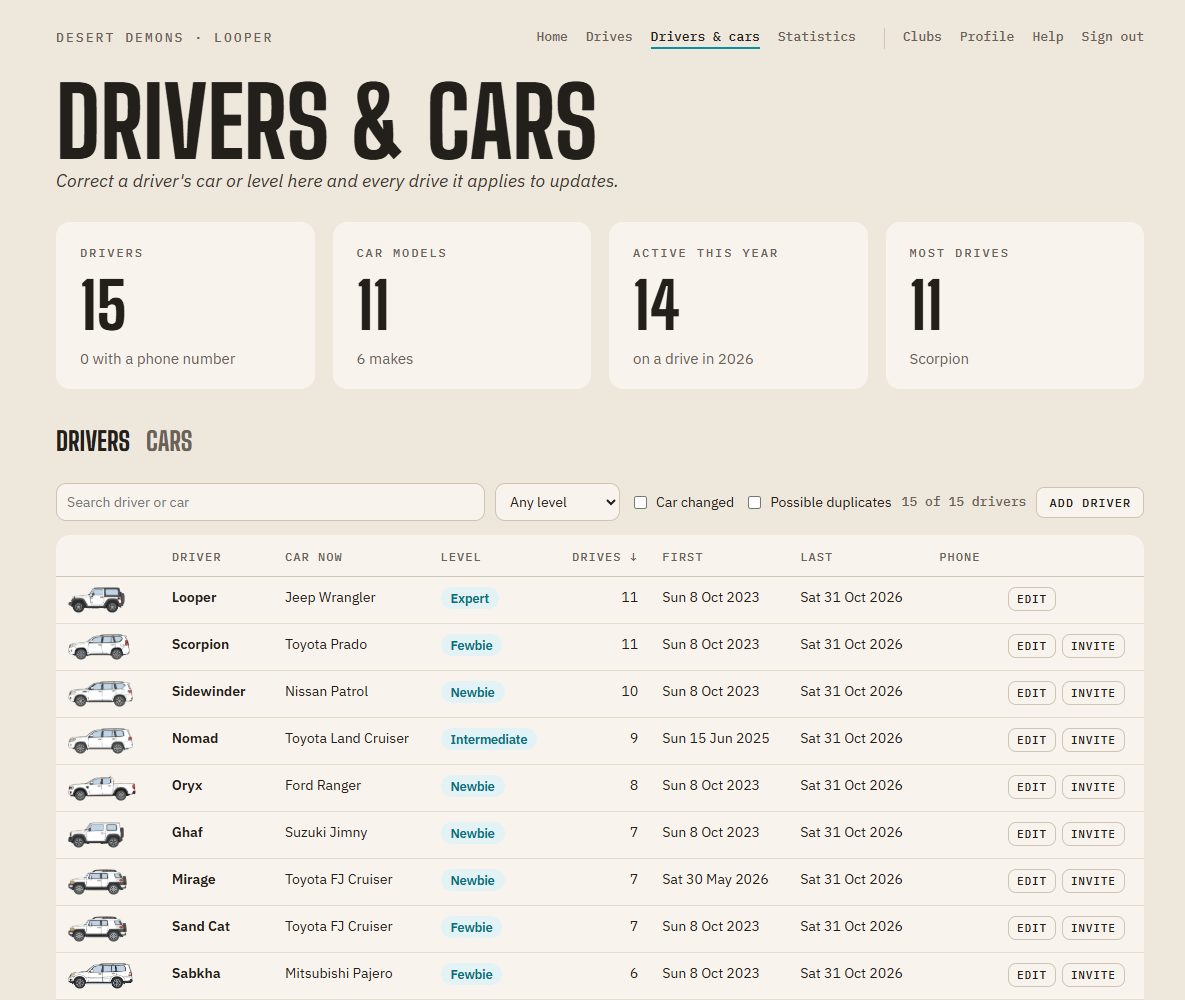
- Drivers & cars lists everyone in your convoys with their car, level and drives together.
- Press Edit to correct a driver's car or level: every drive it applies to updates. A new car or level counts from the day you change it.
- Possible duplicates finds one person entered twice; Merge puts them together.
- Invite sends a driver a link to their own Looper: see Inviting people.
Statistics
- Statistics adds up your drives: distance, time out, moving time, convoy size, places and people.
- Filter by year, by your role and by the drive's level.
- What stands out picks out your busiest year, your home ground and more.
Planned drives
- A drive with a date to come shows under Upcoming on Home, with the forecast once it's near.
- Club drives you joined on a club page show there too.
- Add the track after the drive and it's marked done.
Inviting people
Two ways: invite one driver from your convoys, with their details already filled in, or send your club's page to anyone who should join the club.
Invite a driver from your convoys
- Open Drivers & cars in your log, or a driver's own page.
- Press Invite beside them.
- Press Send on WhatsApp (to their number when you have it), or Copy message and send it any way you like.
- Their link opens Looper's sign-up with their name, car and level from your list already filled in. They add their email, a username and a password.
A link works once, for 14 days. Nothing else from your log goes with it: no drives, comments or phone numbers. Someone who already has an account can't be invited again.
Invite people into your club
- Open your club's page from Clubs.
- Under Invite people to the club, press Send on WhatsApp, or Copy the message for the club's group.
- The message has the club page's link and how to join. Someone new makes their Looper account first, then opens the link.
- They press Ask to join, and an admin accepts them with their level. If the club lets anyone join, they press Join the club and they're in.
Any member can send the club's invite. Only admins accept people and set their levels.

Both at once
- For a driver in your convoys who should join your club: send them their personal Invite first, so their car and level are filled in.
- Once they've made their account, send them the club's page (or they find it under Clubs) to ask to join.
- Anyone else: send them looper.ae/signup, then the club's page.
In a club
A club with a page on Looper plans its drives there. Only its members see the page, its drives and its members.
Join your club's page
- Open Clubs (in the menu, next to Profile), or the link a member sent you.
- Press Ask to join. An admin accepts you with your level, and you get an email. Some clubs let anyone in: then the button says Join the club.
- Changed your mind? Take it back before they answer.
Join a club drive
- On the club's home, the drives coming up show your place: Join, Going, or your place in the waiting line.
- Press Join. You may join drives for your level; others say who they're for.
- When the convoy is full, you go into the waiting line, and move in with an email when a place frees up.
- Not coming after all? Press Leave, so the next in line can come.
Before the drive
- Open the drive's Organize tab: the date, meeting point (open the map), lead and sweep, radio channel, who's coming in convoy order, and the notes.
- Bringing a different car? Pick it on your own row.
- Talk it through in the drive's chat, with photos. The lead's pinned note also comes by email. The chat never goes into a report or a video.
- A reminder comes by email the day before.
After the drive
- When the lead adds the track and ticks who came, the drive arrives in your own log with the club's convoy and your own report.
- Name your stops, add photos, and make your own video from it, as with any drive.
- It counts in your statistics, with the club.
Your level in the club
- The club's admins keep your level. It shows on the club's home and on your Profile, from the day it changed.
- When you've done enough drives at your level, admins see you as ready to move up. Promoting you is their call, and you get an email when they do.
- To leave the club, press Leave at the foot of the club's home.
Running a club
Admins keep the club's page: its details, logo, levels and members. Marshals plan and lead drives. A club always keeps at least one admin.
Get a page for your club
- Add the club to your Profile.
- Open Clubs and press Ask for a page.
- Looper checks it and opens the page; you get an email and are its first admin.
Set it up on Manage
- Logo and a line about the club.
- New members: they ask and an admin accepts, or anyone can join.
- Levels: check the club's drive levels and driver levels.
- Who may join which drives: tick the driver levels for each drive level. A drive level with nothing ticked is open to all.
- Ready to move up: after how many drives at a level a member shows as ready.
Members, roles and levels
- On Manage, accept each person who asked, with their level, or decline.
- On Members, open someone to change their level (they get an email when promoted) or their role: member, marshal or admin.
- Ready beside a member means they've done enough drives at their level. Promoting is always your call.
- Remove a member from their card if you need to.
Plan a club drive
- On the club's home or Drives, press Plan a drive (marshals and admins).
- Paste the Carnity event link to fill it in, or type the title, date, time, kind and drive level.
- Set the meeting point (with its map), how many cars, the lead and sweep, the radio channel and notes. Who may join comes from the club's rule; change it for this drive if you need to.
- Leave Email the members who may join ticked, so they hear about it.
Organize the convoy
- On the drive's Organize tab, order the convoy with ▲▼ and give roles.
- Add someone straight in, even when it's full, or take a car off.
- Copy convoy plan for the club's group.
- In the chat, pin a note for everyone on the drive: it's emailed to them too. Remove a message if you need to.
- Change the drive or Cancel the drive: everyone on it is emailed.
After a club drive
- Under After the drive, add the GPX file or the track's link.
- Untick anyone who didn't come, then press Make the report.
- Everyone who came gets the drive in their own log with the club's convoy and their own report, and it counts towards their next level.
Videos & exports
Every drive with a track has an Export tab. Videos and pictures are made in your own browser and saved to your phone or computer.
Make a video
- Open a drive with its track and go to its Export tab.
- Choose a theme and a template: swipe along the eleven themes, pick the colours (the theme's own or one of eight pairs), then a template, A to H. The preview shows your drive half way through.
- Adjust: the shape (9:16 or 16:9), the camera (whole route or following the car), and what rides the route (a dot, your car or your picture).
- Scenes: your intro, the opening, the convoy (rising up, driving past or one by one), the replay and the ending. Untick any you don't want.
- Timing: how long the replay runs and each stop or photo shows.
- Press Make the video and keep the page open. On a phone, press Save to your phone; on a computer it downloads.
Your choices are kept with the drive, so the next video starts from them.
Themes and templates
- Themes change the look of every template: Classic, Expedition, Field Map, Night Rally, Roadbook, Minimal, HUD, Circuit, Street, Broadcast, Festival.
- Some add extras where the template leaves room: Roadbook a strip of your stops, HUD speed and height tapes, Circuit your sections as sectors, Broadcast the convoy in a timing tower.
- Templates set what shows and where: A route focus, B speed gauge, C map and elevation, D progress timeline, E segmented route, F telemetry, G stats and compass, H custom (you pick each piece and its place).
See them all on the Videos page.
Stops, photos and highlights
- Your stops and photos come up as cards on the way, with their notes and captions.
- The top speed and the highest point come up on their own as the car passes them.
- Under Stops and photos in the video, untick any you want to leave out.
- For template E, name the drive's sections on its Drive tab first.
Your intro, logo and picture
- On your Profile, under Pictures for your videos: your picture (to ride the route), each club's logo, and an intro clip or picture that opens every video.
- A club with a page on Looper keeps its own logo too.
- In the video maker, tick or untick the intro and the logo for each video.
Pictures and files
- Under Pictures: the Instagram post, the swipe set, the report image and the report pictures. Press Make, then save.
- Convoy plan and Forum text copy, ready to paste.
- Under Files: the GPS track (GPX), the report's data, and the drive bundled up, to send when something isn't right with it.
Tips
- Videos need a recent Chrome, Edge or Safari. Keep the page open while it's made.
- On an older phone, shorten the replay, or make the video on a computer.
- Add music when you post it on Instagram or YouTube.
- Comments and phone numbers never go into a video or a picture.
Account, emails & privacy
Emails
- Looper emails you about new drives in your clubs, changes to drives you joined, a reminder the day before, people joining or leaving drives you lead, your report after a club drive, your clubs (such as a promotion), and Looper news.
- To choose, open your Profile, Emails from Looper, untick what you don't want and save. Every email has a link there.
- Emails about your account itself always come.
Backup and import
- On your Profile, Download a backup: your drives, drivers, tracks and photos in one file.
- To bring drives from elsewhere, make a file in Looper's backup format (the format) and use Import a backup on the Profile. Your drives as they are now are kept on the server first.
Password and account
- Forgot your password? On Sign in, press Forgot your password? and use the link we email you.
- To delete your account, open Delete my account at the bottom of your Profile. Download a backup first if you want to keep your drives.
Who sees what
- Your drive log: only you, signed in.
- A club page: its members only. They see your name, car and level in that club, and the club drives you join, not your own log.
- What you share: only the videos and pictures you make and post yourself.
- Never shared: comments and phone numbers. Read the privacy notice.
Looper as an app
- On Android or a computer, in Chrome or Edge: press Install Looper on your Profile or on the home page, or choose Install Looper in the browser's menu.
- On an iPhone or iPad: tap the Share button, then Add to Home Screen.
- It opens on your drives, full screen. On an iPhone, sign in once inside the app.
- It needs a connection, like the website: with no signal it says you're offline.
Often asked
Who can see my drives?
Only you, signed in. A club page is seen by its members only, and they see your name, car and level in that club, not your drives.
My track has no times, and the report won't build.
Looper needs a track with a time on each point. Export the GPX from Gaia GPS (or your app) with times, or share the Gaia track by link.
Gaia GPS won't share my track.
Make the track public in Gaia GPS, or download its GPX there and upload the file instead.
A driver's car or level is wrong in my convoy.
Open Drivers & cars, find the driver and correct it; the convoys follow. For one drive only, change it in that drive's convoy.
The same person is in my list twice.
On Drivers & cars, tick Possible duplicates, then Merge the two.
My invite link doesn't work.
A link works once, for 14 days. Send a new one from Invite. If they already have an account, send them your club's page instead.
Someone asked to join my club. Where do I accept them?
On the club's Manage page, under who asked to join: accept them with their level, or decline. Admins get an email when someone asks.
I can't join a club drive.
The drive is for other levels: it says who may join. Ask a marshal or the lead; they can add you straight in.
The report from a club drive isn't in my log.
It arrives when the lead adds the track and ticks who came. If you were there but aren't ticked, ask the lead.
The video stops, or my phone can't make it.
Videos need a recent Chrome, Edge or Safari. Keep the page open while it's made; on an older phone, try a shorter replay, or make it on a computer.
Why don't I see a theme's extras, like Roadbook's strip?
They go only where the template leaves room. Try template B, C, E or F.
My club isn't in the list.
Type it on your Profile with its levels. Looper checks new clubs and adds them for everyone; then you can ask for its page.
How do I delete my account?
On the Profile, open Delete my account at the bottom. Download a backup first if you want to keep your drives.
Something not right?
Tell us what you did and what happened. We answer by email, usually within a day or two.